Want to display WordPress posts anywhere on your site—pages, widgets, or custom layouts—without writing custom queries? The popular Display Posts shortcode lets you quickly list posts by category, tag, author, or date, and even sort or limit results. Below we’ll show a clean Query Loop alternative using Display Posts, with copy-and-paste snippets and tips to style your lists.
WordPress Posts are the most commonly used for organizing your content. Typically a post is made of the following elements:
- Title
- Author
- Excerpt – a short summary of the content of the post
- Content – the text and images that compose the body of the post
- Featured image – image that typically appears on the top of the post and in the post preview
- Categories – Each post can be assigned to specific categories, these are typically buckets that group posts of a certain type
- Tags – Words or phrases describing the topics mentioned in the post
- Post Type – the most common post types in WordPress are Pages and Posts (blog post) but many plugins use custom types of posts to organize the site content such as events, products etc.
Every WordPress site comes with a default blog archive page and an archive page for each blog category. What if you would like to be more specific and list only the posts tagged #news on a specific page? What if you would like to customize the way each of these post listings look? Page builders might provide you with some basic options for post listing, but they are limited in their flexibility.
How to display posts anywhere in WordPress (with the Display Posts shortcode)
We have found after years of experience trying different options that the best tool on the market is the Display Post plugin. It is a very simple plugin that allows you to create shortcodes for displaying practically any combination of posts you desire. It provides well written documentation with all the different shortcode options for filtering posts by category, tag, type, date, author, title and many many more. There are options to display titles, excerpts, images etc. Each of these listings can be styled (with css) to create unique and attractive designs.
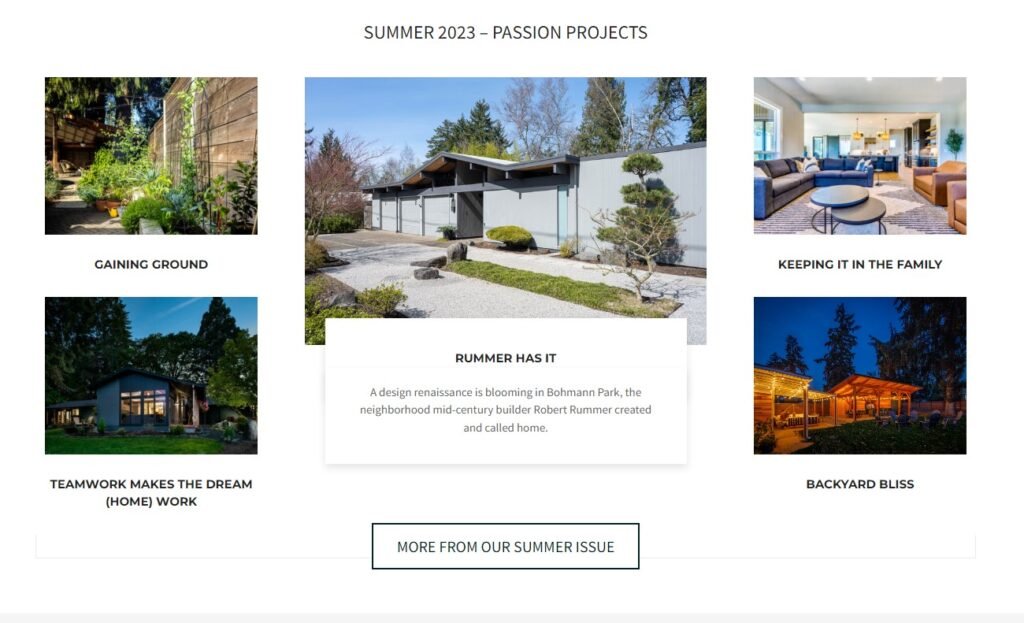
A great example of an attractive post listing exclusively using the Display Post plugin is oregonhomemagazine.com. Here you can find a different post listing for the home page, sidebar and the traditional archive pages.
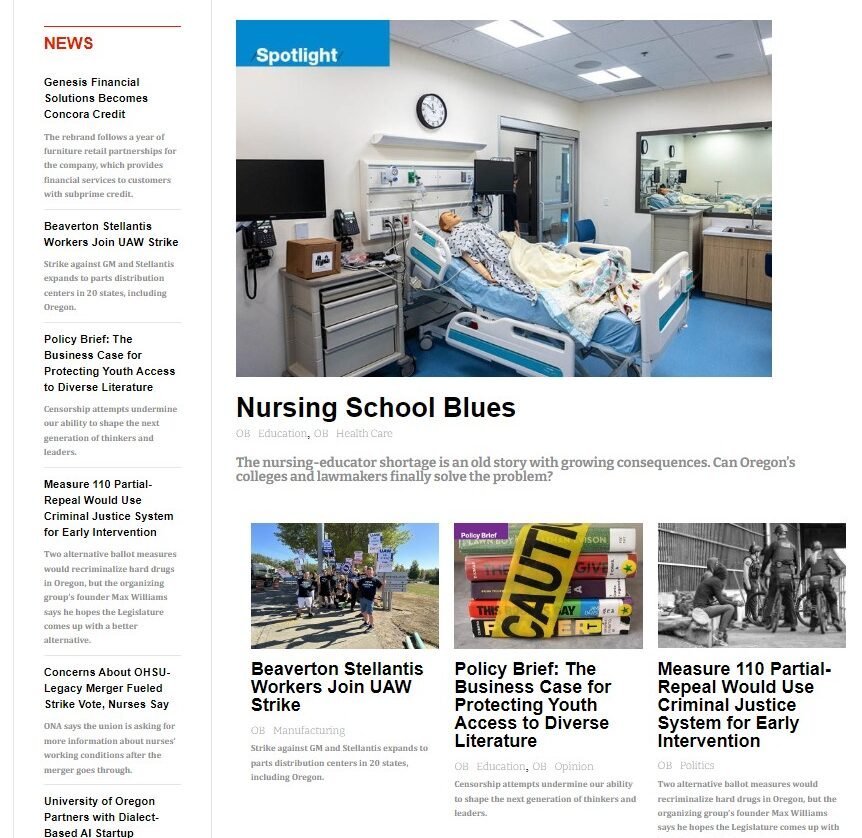
Another perfect fit for Display Posts is a news aggregate site like oregonbusiness.com. Posts are pulled into different display groupings based on the categories, tags and post dates.
To install the plugin on your site you can simply search for Display Post on the Add New Plugin page. To use it you would add a shortcode element to your page and specify the shortcode arguments matching the specific post listing you are interested in. For example, the shortcode below will display the top 10 posts including the excerpt and the thumbnail picture.
[display-posts include_excerpt="true" image_size="thumbnail"]Some other creative uses of the plugin would include pulling a random featured image:
[display-posts orderby="rand" image_size="large" include_content="false" include_title="false" include_date="false" include_excerpt="false"]OR creating a different display for the featured post and for other posts.
[display-posts posts_per_page="1"][display-posts offset="1"]For convenient styling you can include the class name in the shortcode
[display-posts category="cars" wrapper_id="cars-listing"]If you need a lightweight Query Loop alternative, the Display Posts shortcode is a fast way to display WordPress posts anywhere – from the homepage to landing pages and sidebars. Start simple (category or tag), then layer in parameters for sorting, limits, and custom markup to match your theme. Reach out and we will be happy to help.
Photo by cottonbro studio: https://www.pexels.com/photo/white-ceramic-mug-on-white-table-4065894/